Setting up each offer
How to switch on and configure the store credit bonus, add-ons, spend credit now, upgrade discount, come-back credit, Returns+ and the exchange reward.
Before you start
Open Retention from the left-hand menu. Click Edit on any row to open its settings underneath; click Done to close it. Changes wait for the Save bar at the bottom.
Every row has the same three parts: the amount, Who gets this, and Applies to. This article covers the amounts. Targeting and policies are in who gets an offer.
Store credit bonus
Extra credit when a shopper picks store credit instead of a refund. With a 10% bonus, a £78 return becomes £85.80 of credit.
Set the amount in Return Rules
The bonus percentage is part of your policy, so it can differ by market. Go to Return Rules → Basics, open the policy, and set the bonus under refunds. Retention shows the resulting figure on the row, e.g. "+10% credit · Norway +15%".
Decide on the badge
On the Retention row, tick Mark store credit ‘Most popular’ when the bonus is on to highlight the store credit option in the portal. Untick it for a plainer presentation.
If your default policy only offers refunds to the original payment method, the row reads "Store credit isn't offered on your default policy" and nothing is shown to shoppers until you add store credit as an option.
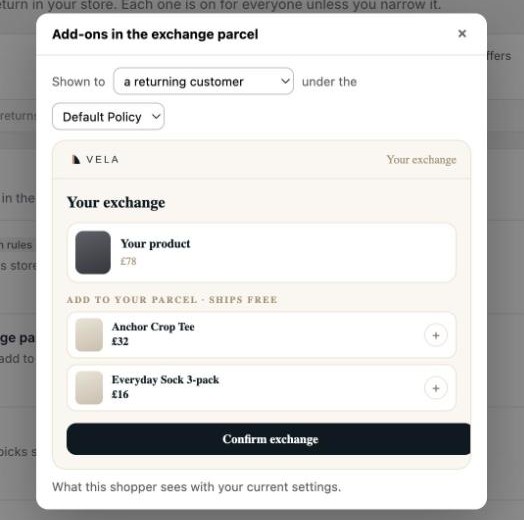
Add-ons in the exchange parcel
Products a shopper can add while building an exchange. They ship in the same parcel, so there's no extra postage for either of you.
Switch the row on
Use the switch on the Add-ons in the exchange parcel row.
Add products
Click Edit and add products from your catalogue. Each product has its own price setting: Shopify price, discounted, or a fixed price. Add a few that pair naturally with what you sell: socks with trainers, a strap with a bag.
Tick where each product appears
On each product you'll see surface ticks. Exchange add-ons puts it in the exchange parcel step; Spend credit now also shows it to shoppers who've just chosen store credit (see below).
The row summary shows how many products are live. With no products, the row is on but shoppers see nothing.
Spend credit now
Straight after a shopper chooses store credit, show them products they can spend it on immediately, while the credit is fresh and the tab is still open.
Switch the row on. The products come from the Add-ons list above: any product with Spend credit now ticked appears here. There's nothing else to set.
Upgrade discount
Money off the price difference when a shopper exchanges for something pricier. Think of it as a nudge from the £78 jogger to the £96 half-zip.
Switch the row on and set the discount
Click Edit. Choose % off or a fixed amount off, and enter the value. It's always applied to the price difference, never the new item's full price, and never more than the difference itself.
Check it in Preview
The preview shows the difference struck through and the discounted amount beside it, which is exactly what the shopper sees at the size picker and at payment.
With a 10% discount, an £18 difference becomes £16.20, and that is the amount collected. If a fixed discount is larger than the difference, the shopper pays nothing and skips the payment step.
The discount needs exchanges switched on in your policy. If a policy has exchanges off, the row tells you which one, and nothing is discounted for returns under it.
Come-back credit
A credit to spend on a future order, sent once the return is complete. It's the offer most likely to turn a one-time returner into a repeat customer.
Set an amount per loyalty level
Click Edit. There are three amounts: New customer (first order with you), Returning (2–4 orders) and Loyal (5+ orders). Yoyo works out the level from the shopper's order history. Set any level to 0 to give that group nothing.
Set the timing
Usable after is how many days after the return completes the credit unlocks (default 30). Then valid for is how long it stays usable (default 30). Check your region's rules on gift-credit expiry.
Optional: segment boosts
Under the amounts, add a rule to give a specific Shopify customer or order tag a different amount, for example "customers tagged VIP get £20". Tick Always offer on a rule to skip the profit check for that group.
The amounts are ceilings, not promises. Before sending a credit, Yoyo checks the offer is likely to pay for itself given the customer's typical basket and your product costs. Every decision is recorded with its reasoning on the return.
Returns+ bundle
At the label step, the shopper pays a small fee: their return label is covered today, and they get credit back after the return completes. It only makes sense when customers would otherwise pay for their own label, so the row stays greyed out until at least one of your policies uses customer-paid labels.
Set a policy to customer-paid labels
Under Return Rules → Basics, set return shipping on a policy to customer pays or deducted from refund. Come back to Retention and the row is enabled.
Set the price and the credit
Click Edit. Shopper pays is the bundle fee; Credit back is what they receive after the return completes. The credit uses the same timing as come-back credit.
A shopper never receives both a Returns+ credit and a come-back credit on the same return. Yoyo offers whichever fits.
Exchange reward
A single-use discount code for the shopper's next order, given for choosing an exchange over a refund. The shopper sees the reward badged on the exchange option before they choose, so it changes the decision.
Switch the row on and grant the permission
Creating discount codes needs an extra Shopify permission. The first time you switch the row on, Shopify asks you to approve it. If you decline, the row stays off.
Set a reward per loyalty level
Click Edit. For each of New customer, Returning and Loyal, choose No reward, % off next order (1–50) or Free shipping on next order.
Codes are single-use, locked to that customer, and valid for the same number of days as your come-back credit window. The code is created and emailed once the exchange is on its way. If the exchange is later cancelled, the code is deactivated.
Turning an offer off
Use the switch on the row and save. Shoppers stop seeing it immediately; anything already issued (credits, codes) stays valid.