Branding your portal
Change the logo, colours, fonts, background and wording so the portal looks like the rest of your store.
During setup Yoyo picks up your logo, colours and fonts from your Shopify theme, so the portal should already look like yours. To adjust it, go to Portal → Customise.
There's a live preview next to the settings. It updates as you make changes, and nothing reaches customers until you click Save changes.
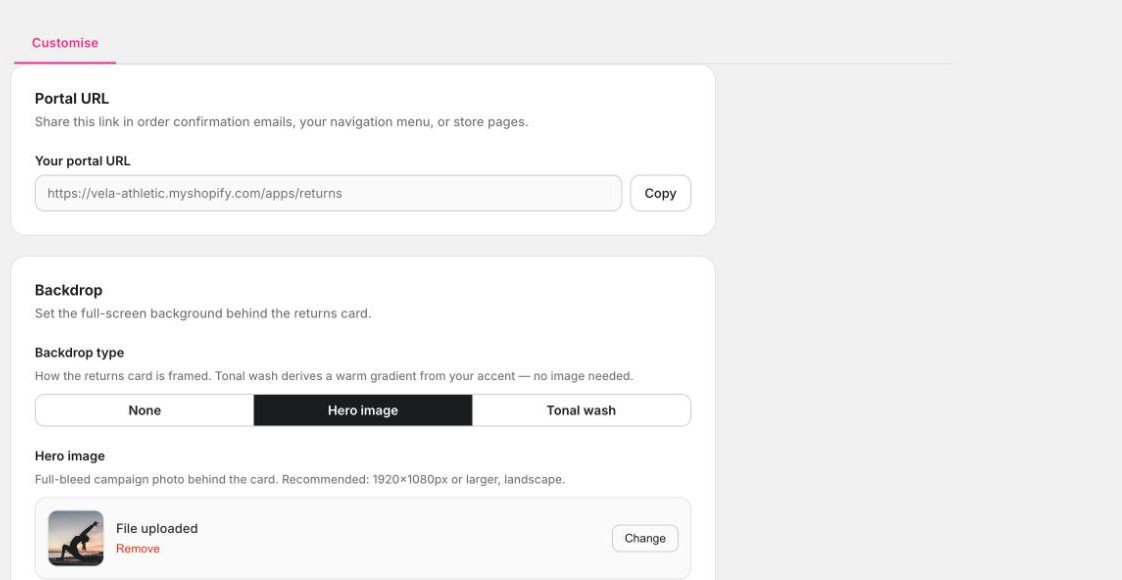
What you can change
Logo & Colours. Your logo and its size, the browser tab icon, and three colours: buttons, accent and background. A PNG or SVG logo with a transparent background looks best.
Copy & Font. The heading and subheading on the first screen, plus the body font and an optional display font for headings. Type the name of any Google Font, such as "Poppins".
Backdrop. What sits behind the returns card. Choose a hero image, a tonal wash (a soft gradient made from your accent colour, no image needed), or none. A hero image should be landscape, 1920 x 1080 or larger.
Overlay. How much to darken the backdrop so the text stays readable, and how much blur sits behind the card.
Card. Frosted glass or solid white, left, centre or right aligned, and how rounded the corners are.
Navigation. The "back to store" link and the link to your returns policy at the bottom of the first screen.
Tips
- Check it on your phone. Most of your customers will see it there.
- Busy hero images make text hard to read. Turn Darken up, or switch the card to solid white.
- If you've changed things and want to start again, Reset to default theme puts it back.
Your portal link
The Portal URL card at the top has your link and a Copy button. Open portal opens the live portal in a new tab.